 Asale
AsaleSelling a Claude subscription
Connect Claude Pro, Max 5×, Max 20× or a Team/Enterprise seat, and what each tier is worth on the market.
You pay Anthropic $20 a month (Pro) or $100–200 (Max), and most of the day that capacity sits idle. This guide offers the idle part on the Asale market: someone uses it, you get paid in USDT.
Time needed: about 10 minutes | Platform fee: 8%
Before you start
You need:
- A paid Claude subscription (Pro, Max 5×, Max 20×, or a Team / Enterprise seat) and the ability to sign into it. A free account has nothing to sell.
- A computer that can stay on and can reach Anthropic. Off or asleep means selling stops; unable to reach upstream means a constant 403 (see below).
- An address that can receive USDT (Solana or TRON). Not having one yet is fine — sort it out once you have earned something.
You do not need: to write code, to give your Claude password to anyone, or to put down a deposit.
Sharing subscription capacity may conflict with Anthropic's terms of service. Asale is only a technical relay — the account is yours, and so is this judgement call.
When you sell, the machine that asks the vendor is your own computer, using your own account. Connecting, renewing and every job you do for a buyer all need that path to work. In some regions a direct connection is refused (the client shows 403) — that is not a sign-in problem, and signing in again will not help.
Use Settings → Network → Upstream proxy (auto / force direct / manual, supporting http://, https:// and socks5://) and click Test connection. See Install the client.
Step 1: Install the Asale client and sign in
Not installed yet? Work through Install the client first: download → install → register and sign in on the Account page, then come back.
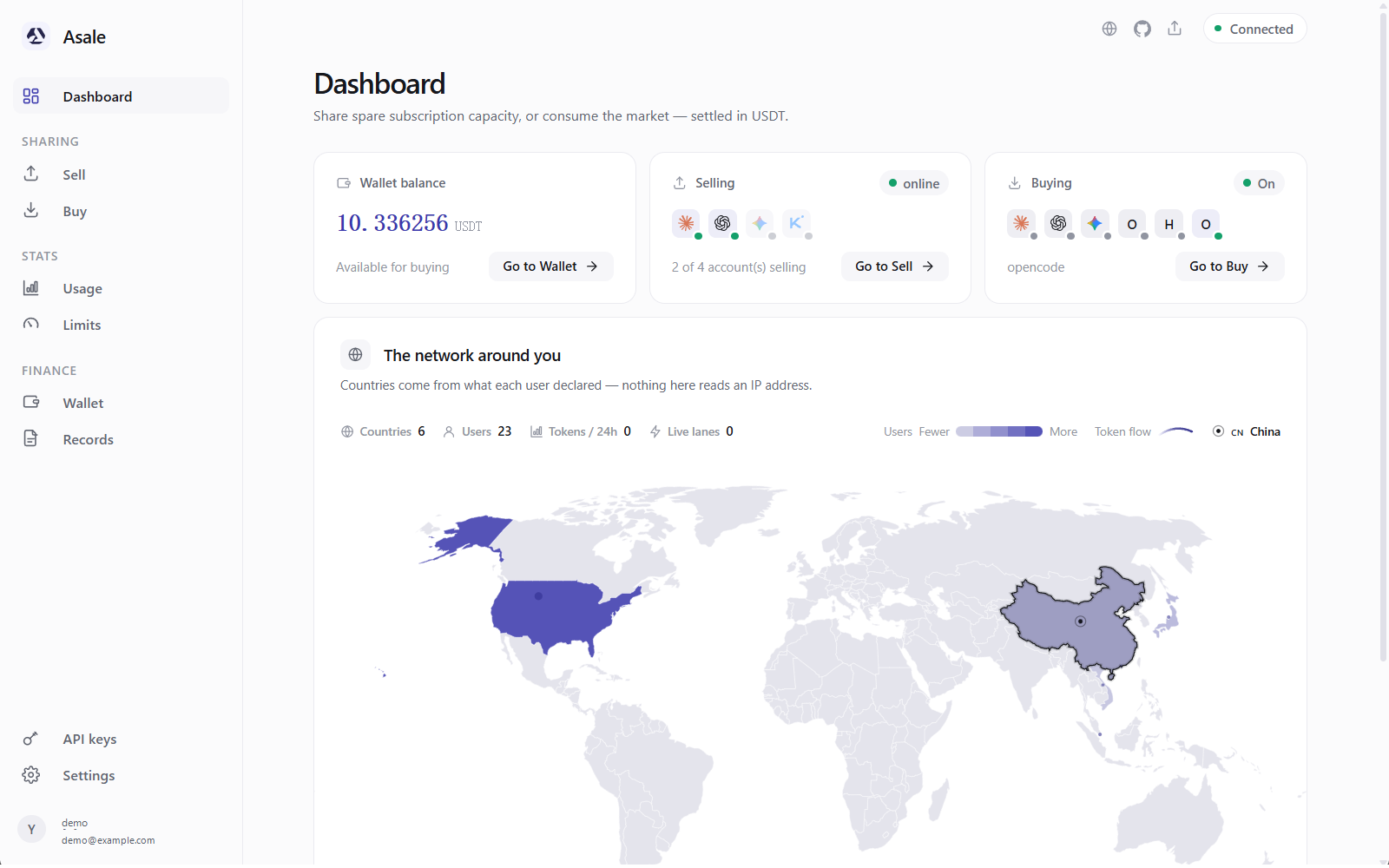
Step 2: Open the "Sell" page
Click Sell in the left-hand navigation.
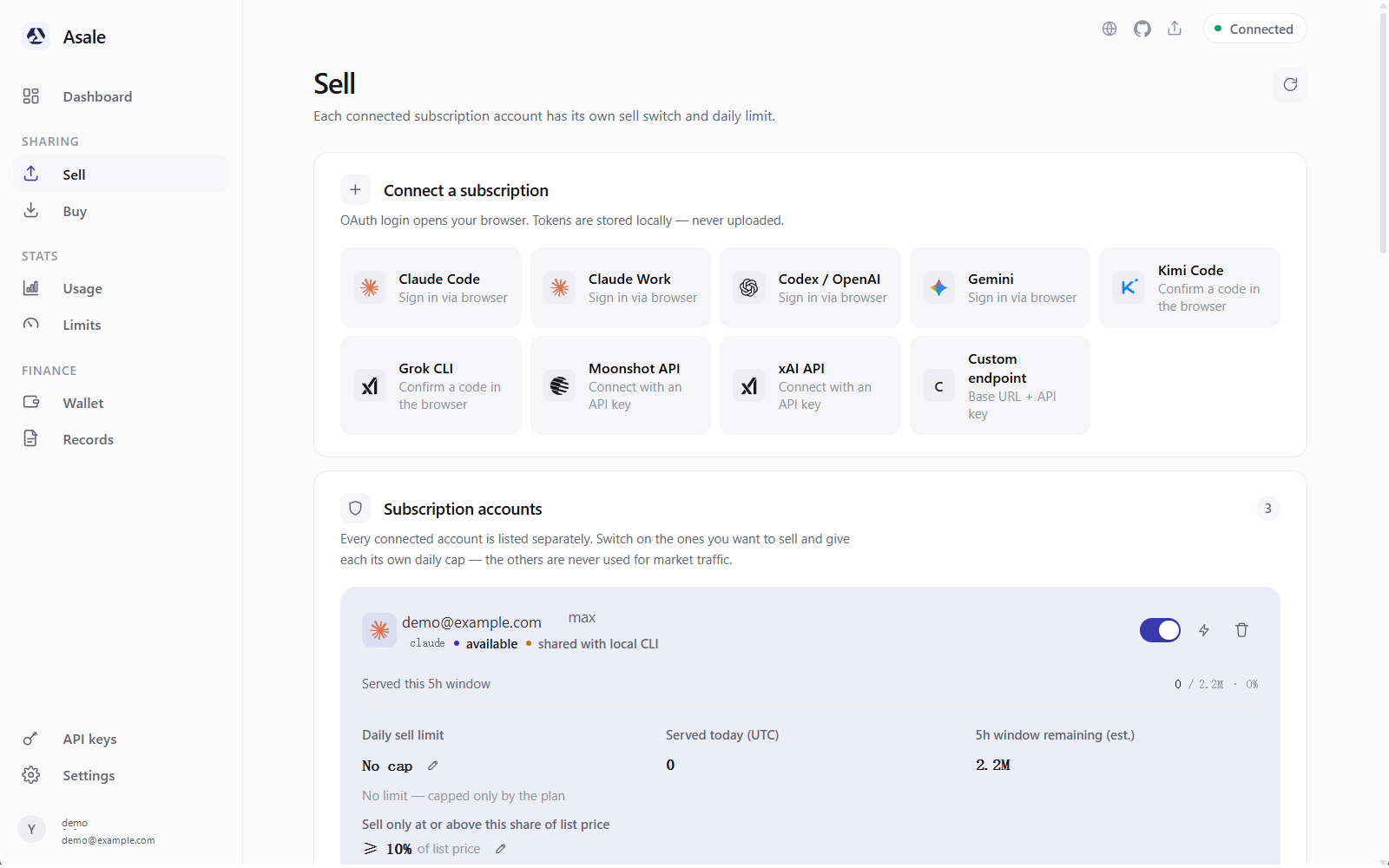
Three parts, top to bottom:
- Connect a subscription — where you bring a Claude account in.
- Subscription accounts — accounts already connected, each with its own switch and limit.
- Imported from local CLIs — Claude Code installed and signed in on this computer shows up here, sellable in one click.
Step 3: Connect your Claude account
Case A: Claude Code is installed and signed in on this computer
Scroll down the Sell page and you will already see a Claude account marked shared with local CLI.

The client imported it on startup, so you do not need to connect again. Skip to step 4.
Sign in a second time and the same subscription appears twice. The client recognises it and merges the rows automatically ("same subscription account, merged from N sources"), but checking the list first saves you the trouble.
Case B: Connect manually (recommended for most people)
Click Sign in via browser in the Connect a subscription area.
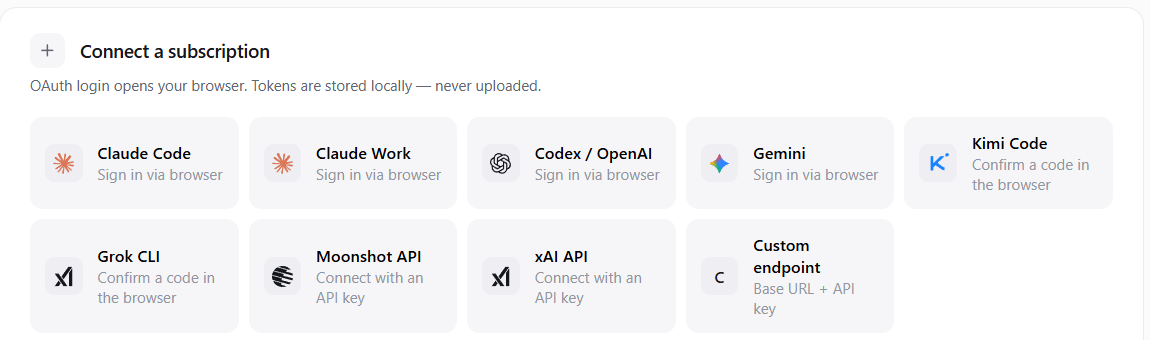
- Your browser opens automatically
The client opens your default browser at Anthropic's sign-in page. That is Anthropic's own page, not Asale's — your password goes only to Anthropic.
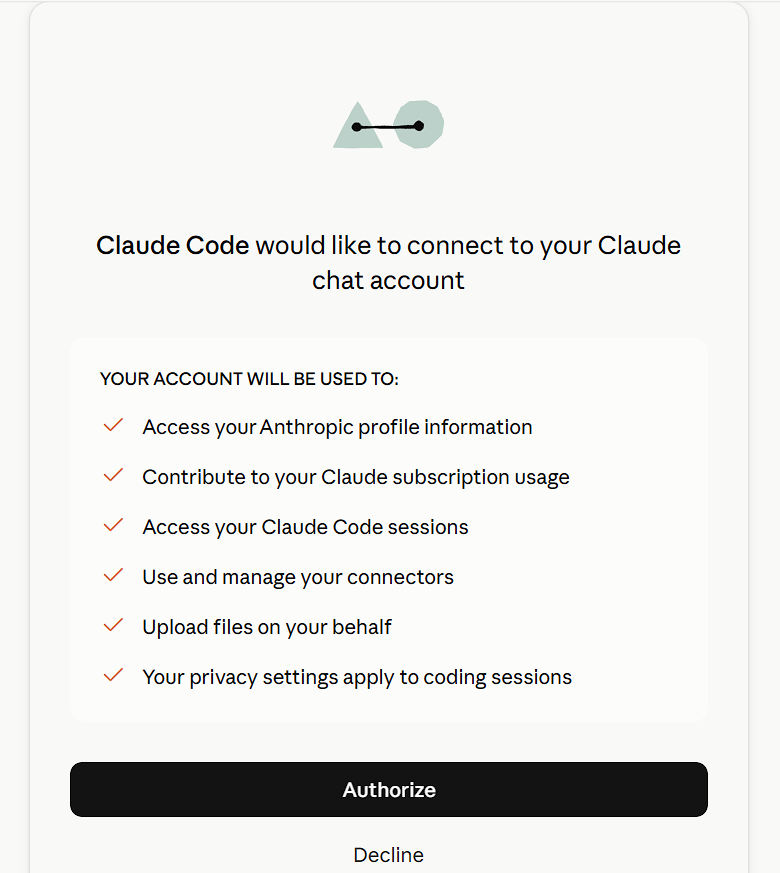
- Sign in and authorise
Sign in the way you normally sign into Claude, then click Authorize.
- It jumps back to the client automatically
The browser returns to your machine and a green message appears: Connected to Claude (your email address).
 Authorised, but the browser page will not open?
The browser has to return to a local
127.0.0.1address. If Asale and the browser are not on the same machine (remote desktop, say), that address will not open.Copy the whole address out of the browser's address bar and paste it into the input box in the client — the connection completes just the same. The client tells you this at that step.
Step 4: Read the numbers on the account card
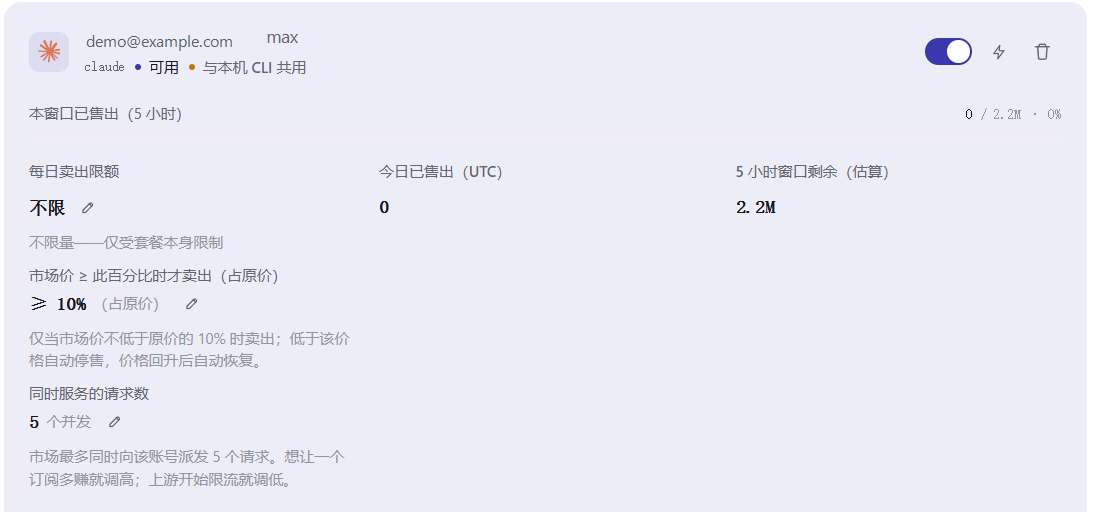
| What you see | What it means |
|---|---|
| 5h window remaining (est.) | Claude's quota rolls on a 5-hour window. Tokens left to sell in this window — an estimate, not exact |
| Served this window | Tokens served for other people in these 5 hours |
| Served today (UTC) | How much you sold today; resets at UTC midnight |
| available / cooldown / expired / quota spent | Whether this account can take work right now |
| shared with local CLI / Asale only | Whether the sign-in came from a local CLI or from Asale itself |
Which window size your plan gets:
| Plan | 5-hour window | Per full day |
|---|---|---|
| Max 20× | 4,400,000 | 21.1M |
| Max 5× | 2,200,000 | 10.6M |
| Team / Enterprise | 1,500,000 | 7.2M |
| Pro | 1,100,000 | 5.3M |
A Team or Enterprise seat connects as a separate vendor (claude_work), takes its own row, and is managed separately from personal Pro / Max.
Step 5: Set the daily limit first, then flip the switch
Cap it first, switch it on second. The other way round, a big chunk can go the moment the switch flips, leaving you short.
Sell → on the account card, click the pencil (Edit limit) next to Daily sell limit.
The Limits page on the left is read-only — it shows each vendor's rate limits and quota usage; you cannot set a selling cap there.
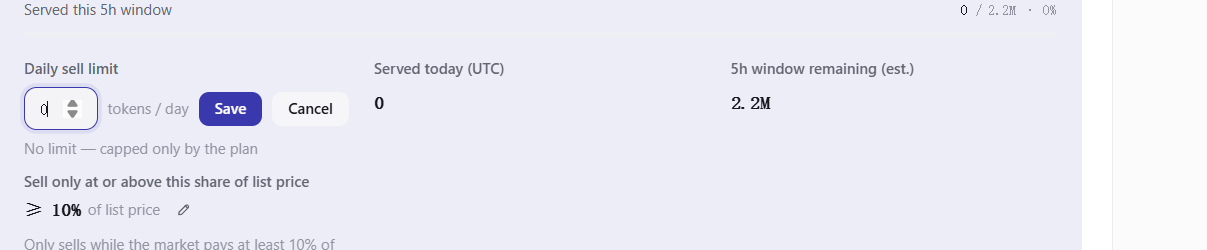
Enter a token count: 3000000 means at most 3 million tokens a day. Empty or 0 means no limit (still bounded by the plan itself).
This field takes whole token counts only — 50% is read as 50 tokens. The percentage on the card is the price floor in the next step, a different thing.
The window figure is an estimate. Sell the very last token and the next request Anthropic refuses will be your own. A common compromise is 50%–70%; set it lower if you use a lot yourself during the day.
Selling stops automatically at the limit — no queue, no catch-up — and resumes at UTC midnight.
Step 6: (Optional) Set a price floor
The market price of a model moves. You can declare "below a certain price, I do not sell": click Edit price floor on the account card.

What you enter is a percentage of the vendor's list price. 40% means you only sell while the market price is at least 40% of Anthropic's official price; below that, the model stops selling automatically. The default is no floor.
"Seller online but holding out for a better price" is visible to the market — as sellers drop out the price climbs back, and whoever's floor it passes comes back automatically. You do not have to do anything.
Step 7: (Optional) Tune concurrency
Requests served at once defaults to 5 — the maximum the market will hand this account simultaneously.
- Want one subscription to earn more → raise it.
- Anthropic starts throttling you ("rate limited" appears) → lower it.
At the start, leave it alone and run a day on the default.
Step 8: Turn on the sell switch
Turn on Sell this account on the account card.

The status in the bottom-left corner goes from "Idle" to online, and the Dashboard shows "selling accounts" as 1 / 1 on.

Step 9: Confirm you really are selling
Per-model status on the account card lists what each model is doing right now:

| Status | What it means | What to do |
|---|---|---|
| selling | Listed on the market normally | Nothing |
| cooldown | It just errored and is resting briefly | Wait; it recovers by itself |
| paused / repeated errors | Taken down automatically after repeated failures | Fix the cause, then click Resume |
| sign-in needed | The sign-in expired | Connect the account again on the Sell page |
| quota spent | The window or the daily cap is used up | Wait for the window to roll / for the next UTC day |
| held on price | The market price is below your floor | Lower the floor if you want to sell more |
| off | The switch is off | Turn it on |
Records → Sell lists each job: time, model, token count, and how much USDT it earned.
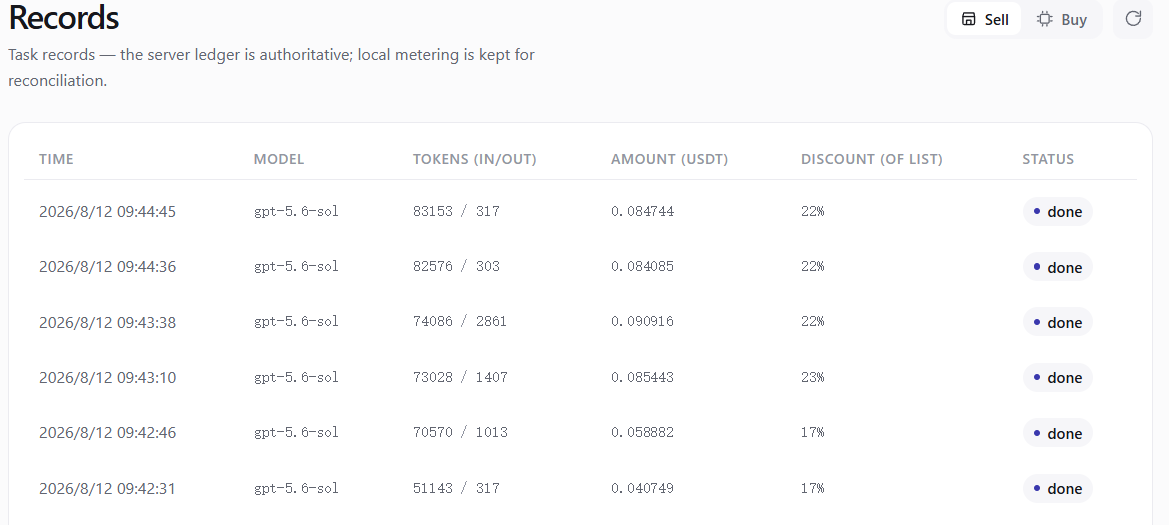
Money earned lands in Payable (earnings) in the Wallet.
Yes. The market assigns work on price 45%, reputation 25%, response speed 15%, success rate 15%. A new account's reputation has not built up, and your models may simply be out of demand — both push you down the queue. Leave it listed for a day.
You also need a reputation of at least 600 to be queued at all. Botching jobs costs points, and several in a row can temporarily push your whole machine out of the market until the score recovers.
Step 10: Withdraw the money
Wallet on the left. Three numbers:
Available: spendable and withdrawable | Held: reserved by requests in flight | Payable: what selling has earned
Each completed job is credited to Payable after the platform's 8%. To withdraw, pick Solana or TRON, enter an address on that chain and an amount; the page shows the fee and what actually arrives.
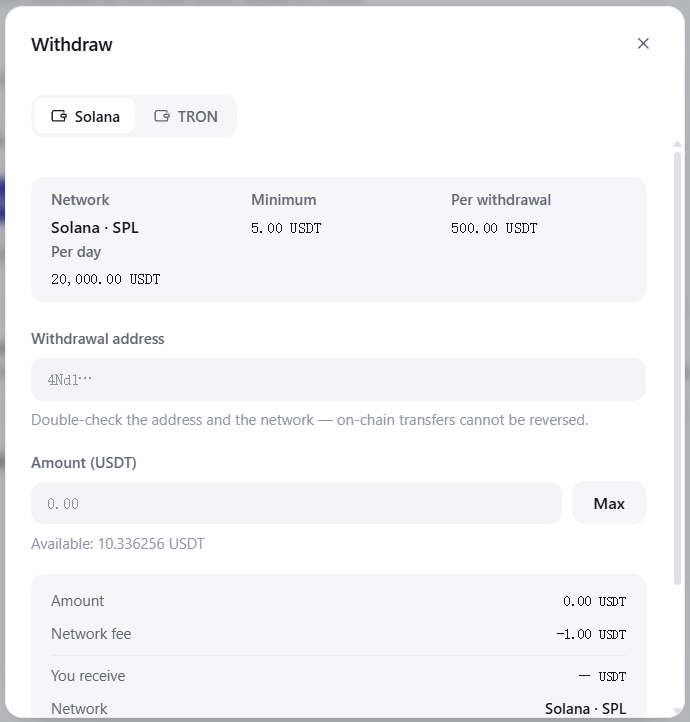
On-chain transfers cannot be reversed. Put a TRON address on Solana and the money is gone. Check the address and the network once more before you submit.
Withdrawals go through a risk review before being broadcast on-chain. Some accounts are restricted to whitelisted addresses only.
Which Claude models you can sell
claude-opus-5, claude-sonnet-5, claude-haiku-4-5.
Opus earns the most per token and burns through the window fastest. A daily cap does far more for making the window last than avoiding a particular model — you cannot pick and choose only the cheap jobs.
Common questions
Does selling let other people see my conversations? No. The buyer's question is relayed to your computer, which sends it to Anthropic. Your credentials are used only at the moment the request goes out and never leave your machine — not to the buyer, not to Asale.
What does Anthropic see? That your account is sending requests normally. The content is the buyer's.
Will my own Claude Code get slower? Your own requests and the ones you sell share the same 5-hour window. A daily cap protects you; without one, it could in theory be sold out.
What happens if I shut the computer down? You disappear from the market and no more work is assigned. It resumes automatically when you boot up, with no reputation penalty.
Does the Claude Code buy switch conflict with this? Yes. Turn Buy on for Claude Code and the Claude account imported from this machine stops being listed — the client says so on the Sell page. The same account cannot buy and sell at once.
The account says "expired"? The saved sign-in could not be renewed; connect once more on the Sell page. A sign-in cannot renew itself forever.