 Asale
AsaleSelling Kimi (Moonshot)
Two ways to connect Moonshot — a Kimi Code subscription by device code, or a platform API key billed against a balance. They behave differently.
Moonshot (Kimi) has two entirely different ways in. They are not interchangeable, and they earn money differently:
| Route | What you are selling | Risk |
|---|---|---|
| Kimi Code subscription (device code) | Subscription capacity you have already paid for | Low — when it runs out, it runs out |
| Moonshot API key | The actual money in your account balance | High — every token you sell spends your money |
Decide which one you are taking first. If you are not sure, take the subscription route.
Time needed: about 10 minutes | Platform fee: 8%
When you sell, the machine that actually asks the vendor is your own computer, using your own account — so connecting the account, the automatic renewals afterwards, and every job you do for a buyer all require that path to work. In some regions a direct connection is refused (the client shows 403); this is not a sign-in problem, and signing in again will not help.
The client ships with Settings → Network → Upstream proxy (auto / force direct / manual, supporting http://, https:// and socks5://), and you can click Test connection to verify it. See Install the client.
Step 1: Install the Asale client and sign in
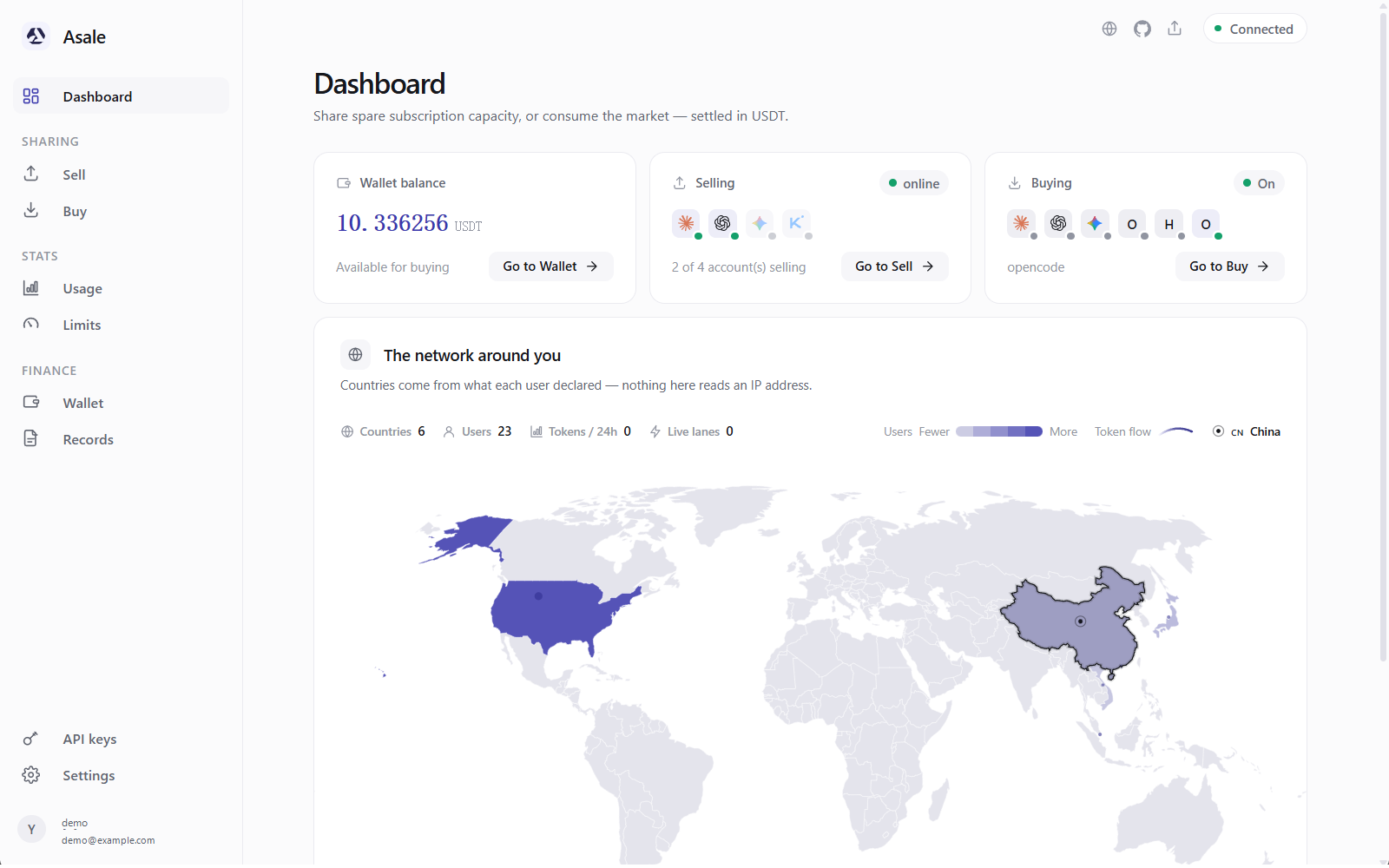
Not installed yet? Work through Install the client: download → install → register and sign in on the Account page.
Route one: a Kimi Code subscription (recommended)
Kimi cannot pop open a browser sign-in the way Claude does; it uses a device code: the client gives you a short code, and you confirm it in a browser on any device you like.
Step 2: Start the device-code connection
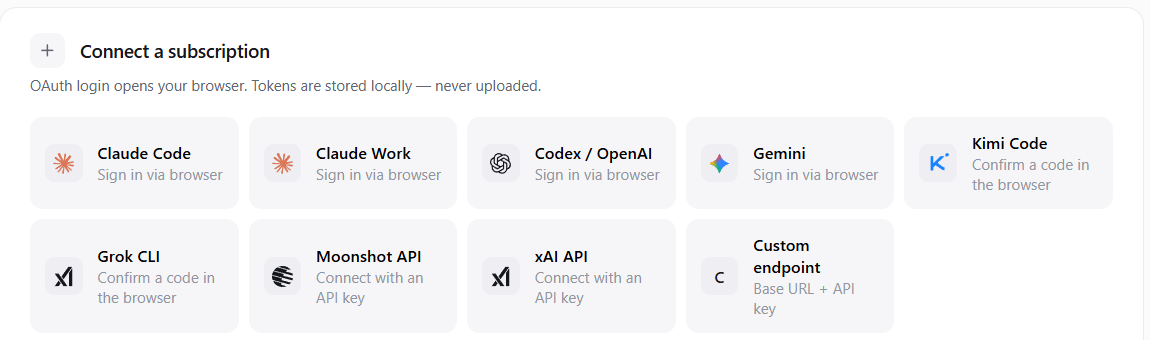
Sell on the left → in the connect-a-subscription area, click Confirm a code in the browser.
- Note the code on screen
The client shows a URL and a code, with the instruction to open that page and confirm the code below.

- Open that URL in a browser
That browser does not have to be on this computer — a phone or another computer is fine. This is one of Kimi's advantages: even if Asale is installed on a headless server, you can pull out your phone and finish the authorisation.
- Sign into Kimi and enter the code
Once you confirm, go back to the client and it continues by itself — meanwhile the interface says it is waiting for you to authorise and will continue automatically.
 Why this account has no email address on it
Kimi does not tell Asale your account name when you authorise, so the list shows the vendor plus a local serial number instead of an email address. That is normal, not a failed connection.
Route two: a Moonshot API key
An API key is not a subscription — it bills against your account balance. Which means: every token you sell has Moonshot deducting money from you, while Asale pays you at the market price.
The difference between those two numbers can be positive or negative. When the market price is low, the more you sell the more you lose.
The daily cap is the only thing standing between the market and your credit card. On this route, setting a cap is mandatory.
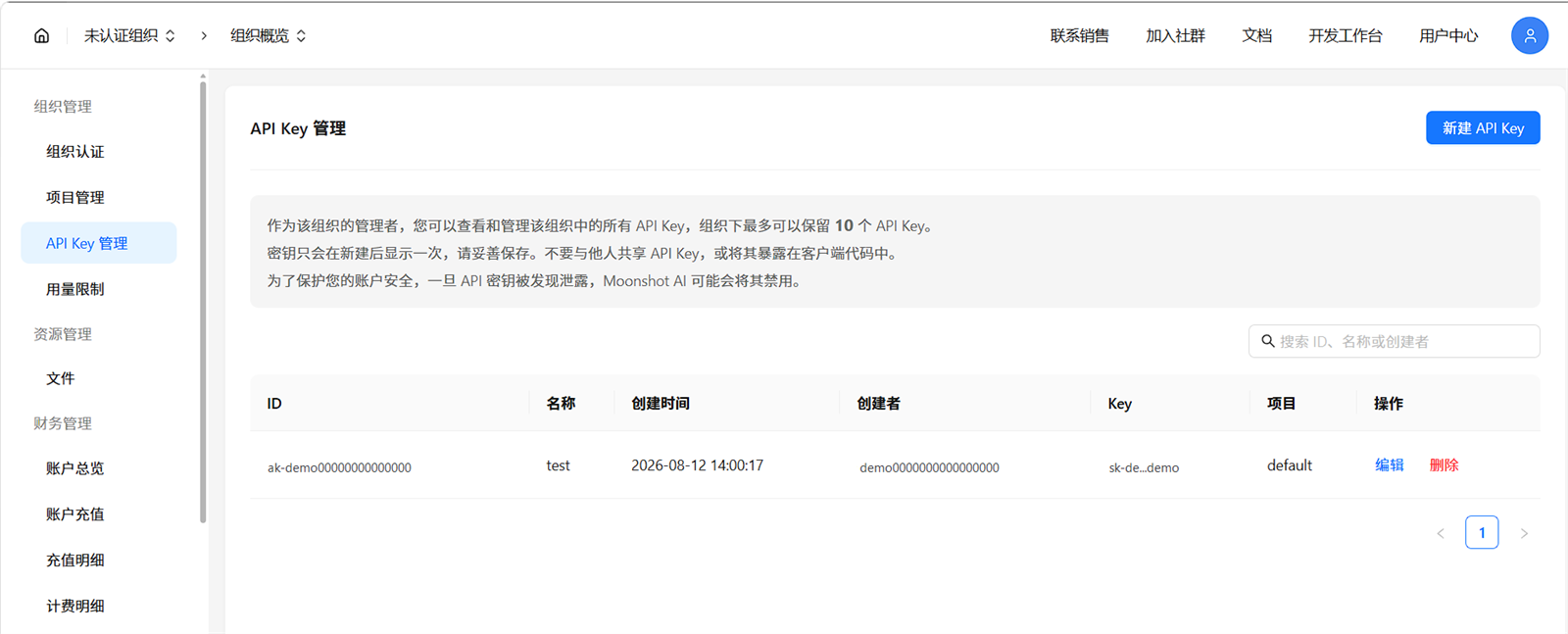
- Issue an API key in the Moonshot console
Sign into the Moonshot open platform, create a key on the API key management page, and copy it.
- Back in the client, click "Connect with an API key"
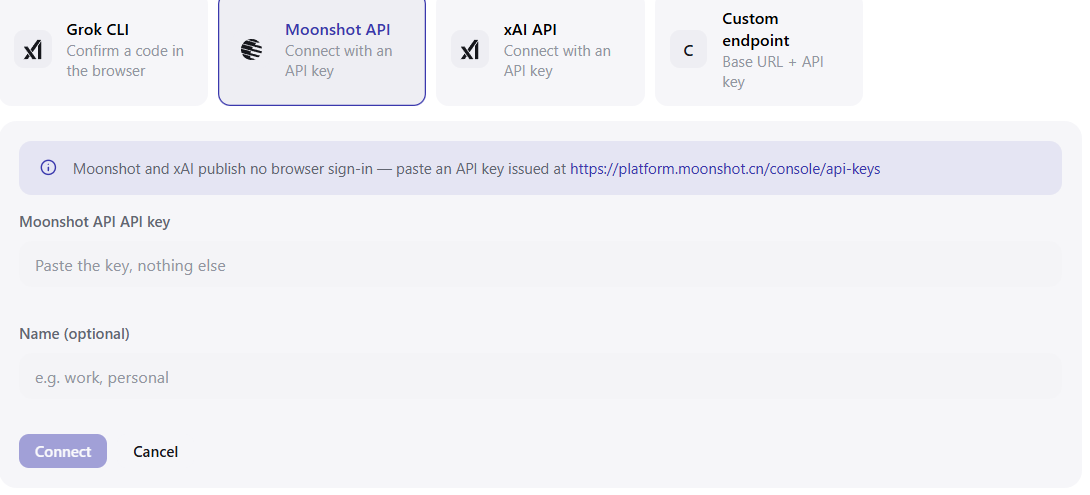
Sell on the left → Connect with an API key.
- Paste the key and give it a label
Paste the key, nothing else — no
Bearer, no quotes, no spaces. The label is optional ("work", "personal") and just helps you tell them apart later in the list.Click Connect.
Step 3: Set the daily limit (this step matters especially for Kimi)
Sell on the left → click the pencil (Edit limit) next to Daily sell limit on the account card. The Limits page on the left is a read-only usage view; you cannot set a selling cap there.
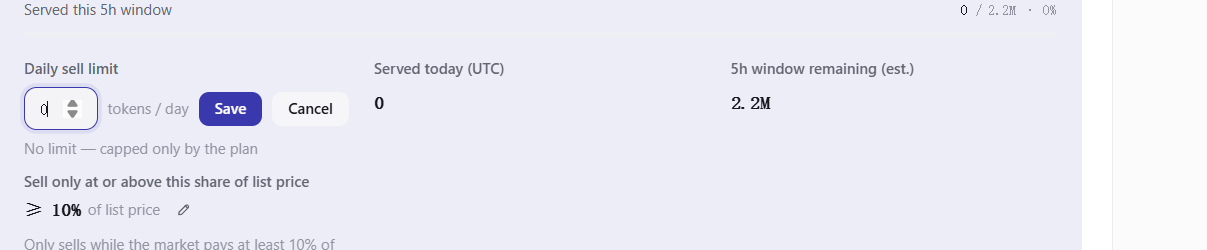
Kimi does not publish a quota at all — it limits how many times you can ask within a period, and the API key route simply bills whatever you spend with no ceiling. There is no way to estimate it, so the client conservatively reports 500,000 tokens.
Meaning: the 500,000 on the card is not a real quota and stops nothing. The only thing actually constraining this account is the daily cap you set.
Subscription route: pick a number you consider reasonable. API key route: you must set one, working backwards from "the most I am willing to spend today".
Step 4: Turn on the sell switch
Turn on Sell this account on the account card.
The status in the bottom-left corner becomes online.
Which Kimi models you can sell
kimi-k2.7-code, kimi-k2-thinking, kimi-k3.
Step 5: Confirm you really are selling
Per-model: check whether these models are selling.

Records → Sell tab: every job listed with time, model, token count and how much USDT it earned.
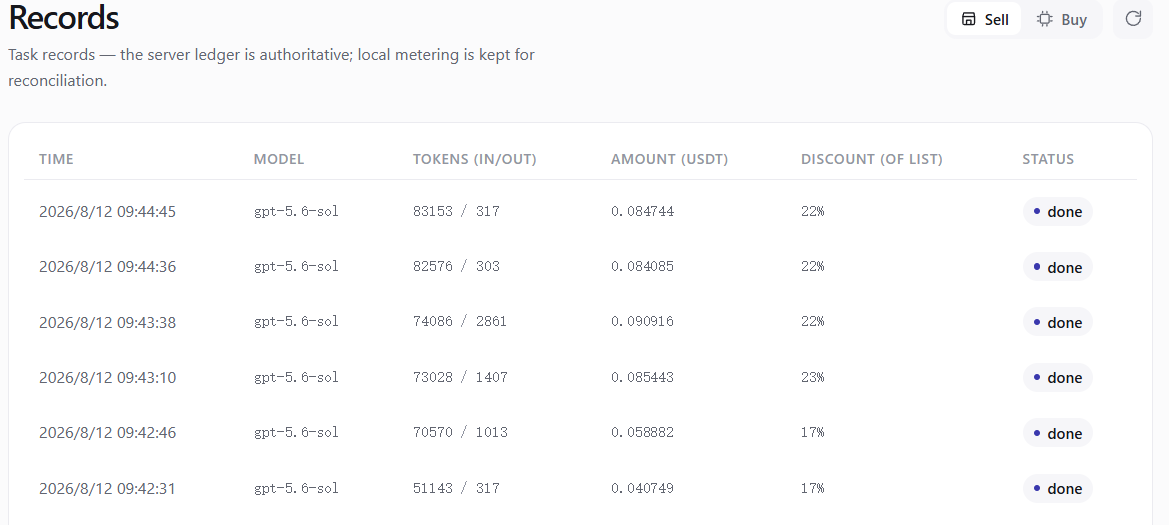
Asale's Records page only tells you what you earned; it has no idea what you spent on Moonshot's side. Open the usage page in the Moonshot console regularly and compare the two — only you can work out whether this route is worth it.
Step 6: Withdraw
Wallet → Withdraw → pick Solana or TRON → enter an address and an amount.
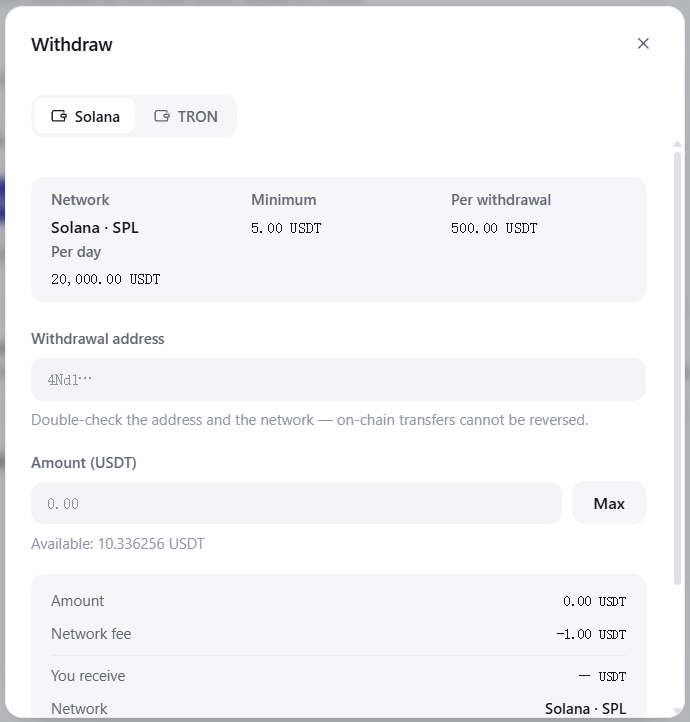
On-chain transfers cannot be reversed. Check the address and the network twice before you submit.
Common questions
Can I use both routes at once? Yes. They are two separate account entries, each with its own switch and cap. Just be careful not to mix up the income and spending of the two.
Does it matter which browser I confirm the device code in? No, a phone works too. That is exactly the advantage of a device code over a browser sign-in.
I am on a server with no graphical interface — can I sell Kimi? Yes. Kimi and Grok are the only two vendors that can be connected this way — they use device codes, so confirming on your phone is enough and the machine itself needs no browser.
How do I revoke an API key? Click Remove on the account card, then delete the key in the Moonshot console. Both steps are needed to disconnect properly.
Why has my Kimi been selling for ages without earning much? Look at the settlement price of each job in Records. When prices are low you can set a price floor ("Edit price floor" on the card): below it, selling stops automatically and resumes when the price comes back.