 Asale
AsaleSelling a Gemini subscription
Connect a Google Gemini Pro, Advanced or Ultra plan and offer its idle capacity.
Google's Gemini plans (Pro / Advanced / Ultra) usually come with more capacity than you use. This guide shows you how to put the idle part on the Asale market and earn from it.
Time needed: about 10 minutes | Platform fee: 8%
Before you start
You need:
- A paid Google Gemini plan (Pro, Advanced or Ultra) tied to your Google account.
- A computer that can stay on and can reach Google (if it cannot, you get a constant 403 — see below).
- An address that can receive USDT (Solana or TRON). Not having one yet is fine.
When you sell, the machine that actually asks the vendor is your own computer, using your own account — so connecting the account, the automatic renewals afterwards, and every job you do for a buyer all require that path to work. In some regions a direct connection is refused (the client shows 403); this is not a sign-in problem, and signing in again will not help.
The client ships with Settings → Network → Upstream proxy (auto / force direct / manual, supporting http://, https:// and socks5://), and you can click Test connection to verify it. See Install the client.
Step 1: Install the Asale client and sign in
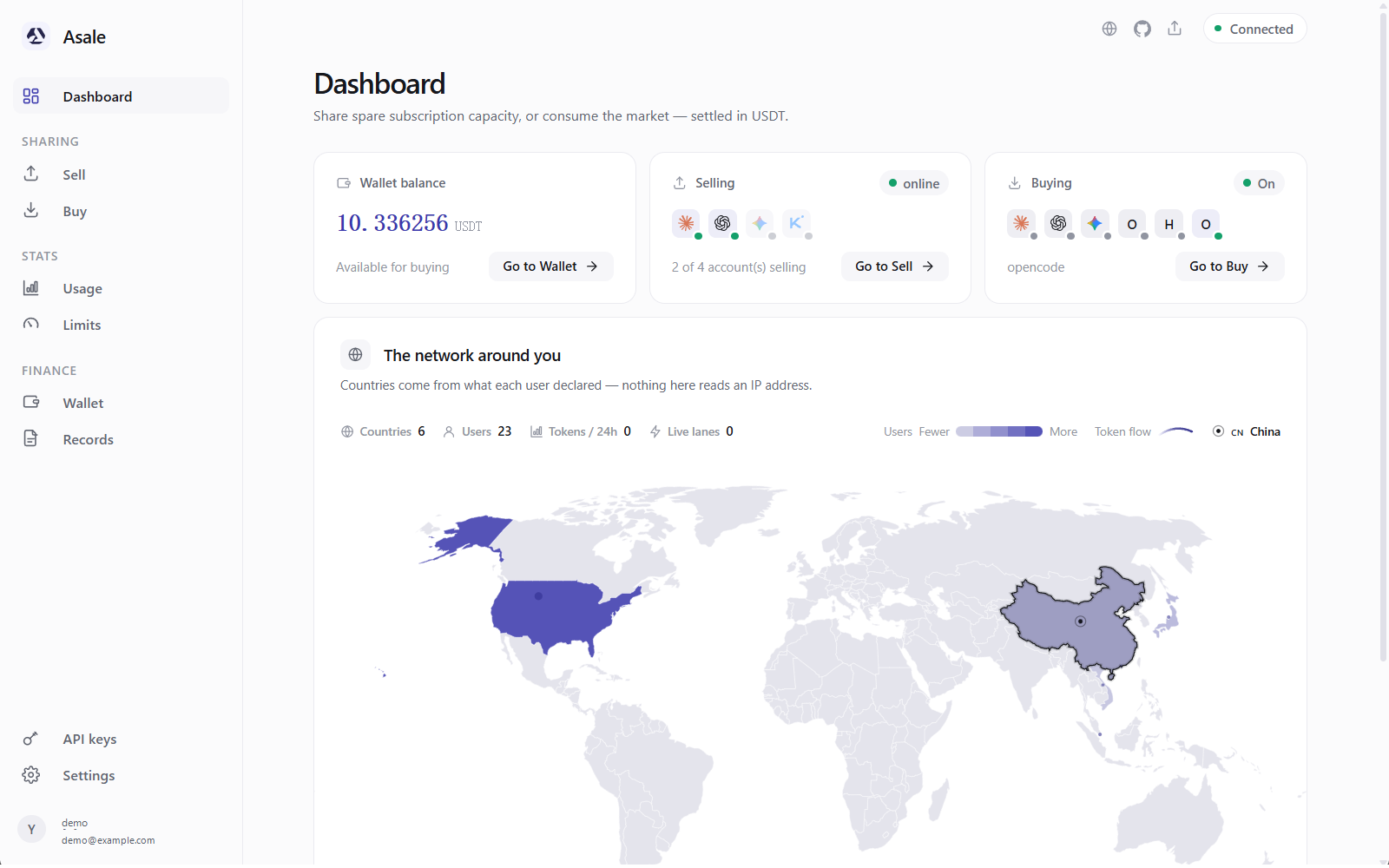
Not installed yet? Work through Install the client: download → install → register and sign in on the Account page.
Step 2: Open the "Sell" page
Click Sell on the left.
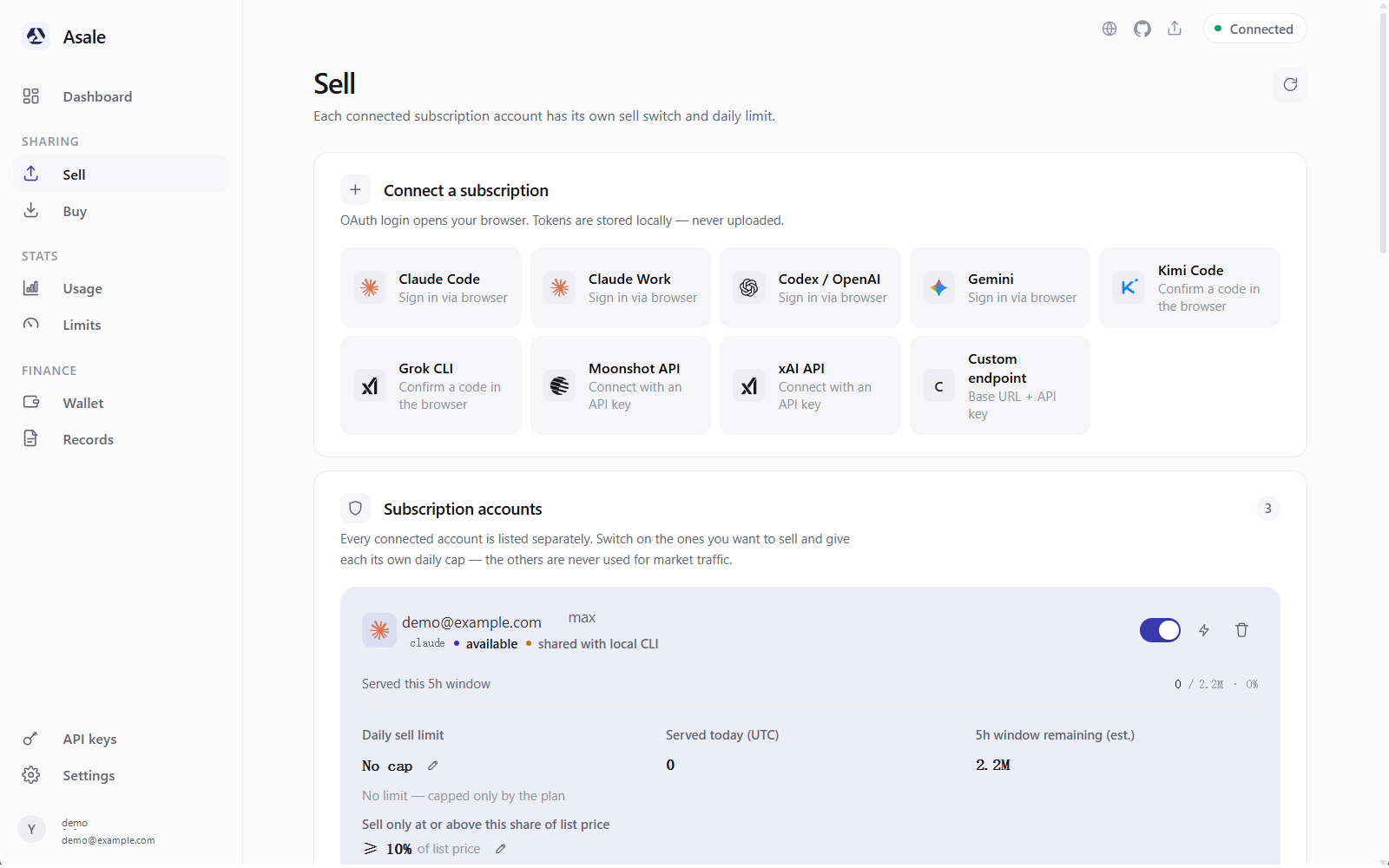
Step 3: Connect your Google account
Case A: Gemini CLI is installed and signed in on this computer
The startup scan reads ~/.gemini/oauth_creds.json (and the keychain on macOS), takes the account over automatically, and marks it shared with local CLI in the list.

If it is already there, do not connect again — skip to step 4.
Case B: Connect manually
Click Sign in via browser.
- The browser opens Google's sign-in page
That is Google's own page; your password goes only to Google.
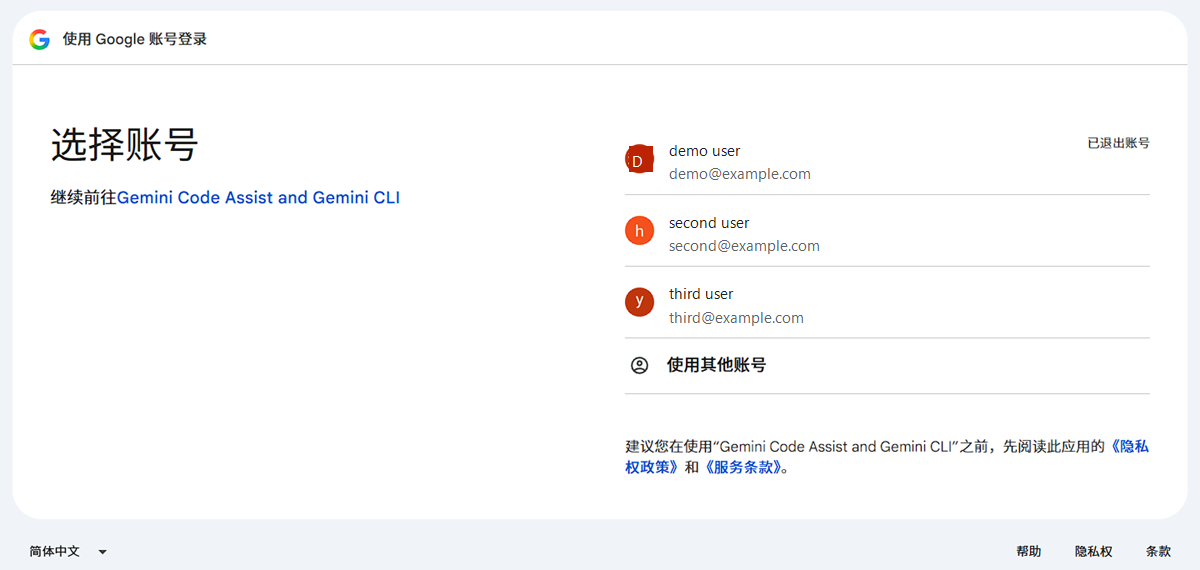
- Pick the account and approve
Be careful to pick the Google account the subscription is on. Plenty of people have several Google accounts, and picking the wrong one connects an account with no capacity.
- Back to the client
A green message appears: Connected to gemini (your email address).
 Authorised, but the browser page will not open
The callback address points at the machine running the browser. Copy the whole string from the address bar and paste it into the input box in the client to finish connecting.
Step 4: Read the numbers on the card
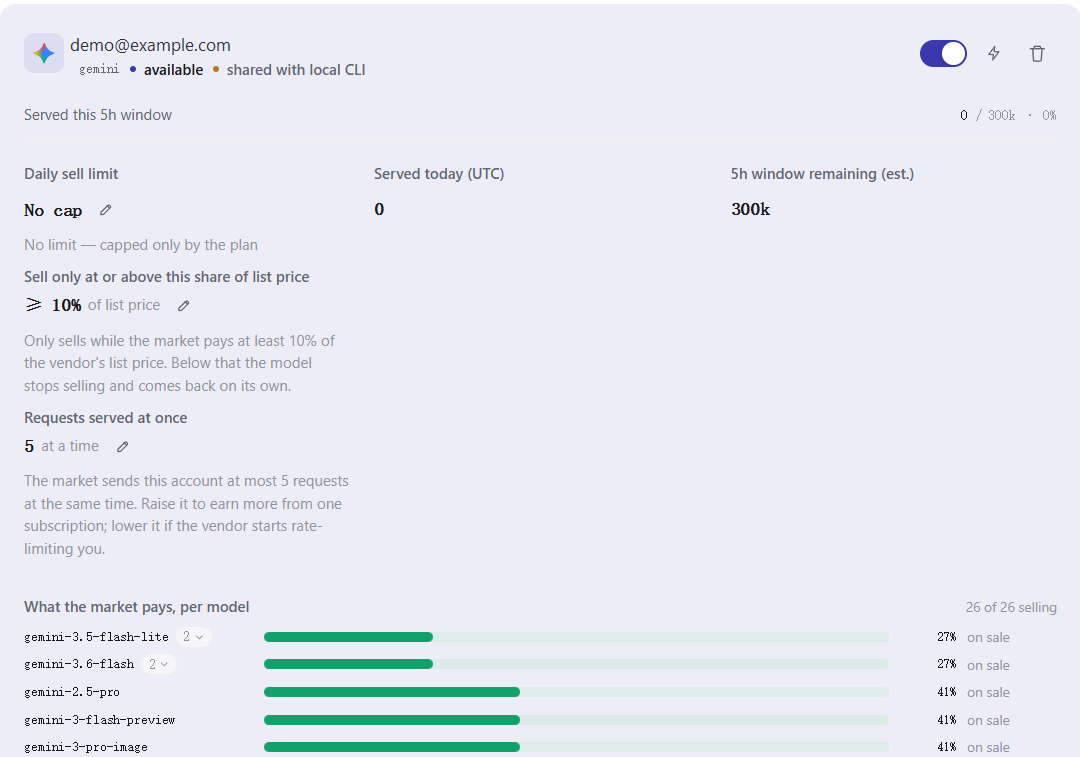
Which window size your plan gets:
| Plan | 5-hour window | Per full day |
|---|---|---|
| Ultra | 3,000,000 | 14.4M |
| Pro / Advanced | 1,500,000 | 7.2M |
When the plan cannot be identified, it falls back to 300,000 — a figure that is deliberately low.
Under-reporting only means taking slightly less work; over-reporting costs you reputation when upstream refuses work you have already committed to. Better to be conservative. Once your plan is identified, the number goes up by itself.
Step 5: Set the daily limit first
Sell on the left → click the pencil (Edit limit) next to Daily sell limit on the account card. The Limits page on the left is a read-only usage view; you cannot set a selling cap there.
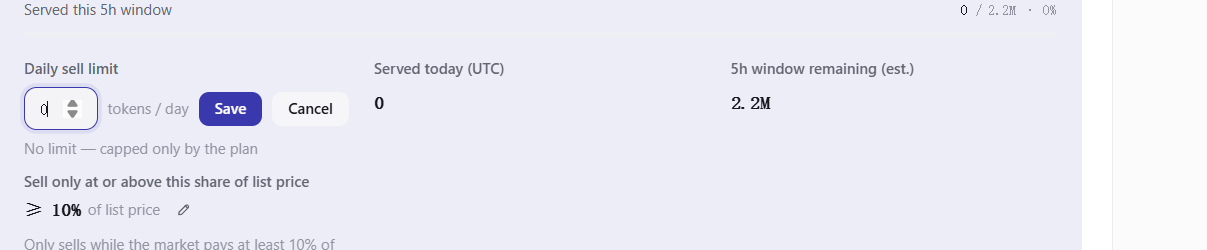
Enter a whole token count (3000000, say) and click Save. It does not accept things like 50%. Selling stops automatically at the cap and resumes at UTC midnight.
Step 6: Turn on the sell switch
Turn on Sell this account on the account card.
The status in the bottom-left corner becomes online.
Which Gemini models you can sell
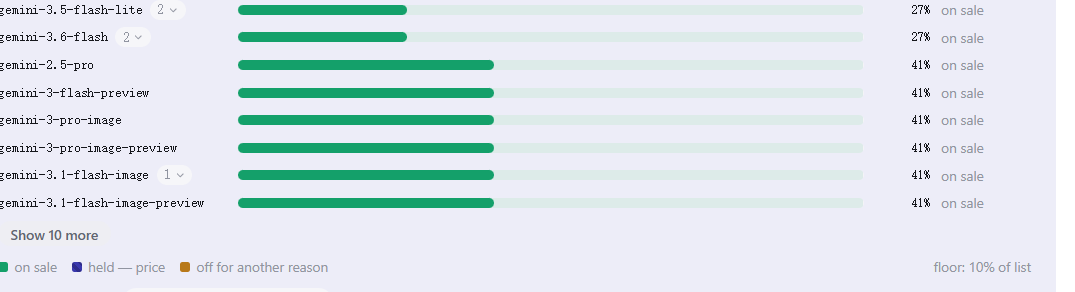
gemini-2.5-pro and gemini-2.5-flash.
Flash is cheap per token but comes in volume. If your window is not large to begin with, letting Flash traffic fill it is kinder — many small jobs are easier to manage than a Pro request that swallows a big chunk in one go.
Gemini's message format differs from everyone else's; Asale converts it for you before the request reaches your machine. You configure nothing and never notice that layer.
Step 7: Confirm you really are selling
Per-model: check whether gemini-2.5-pro / gemini-2.5-flash are selling.
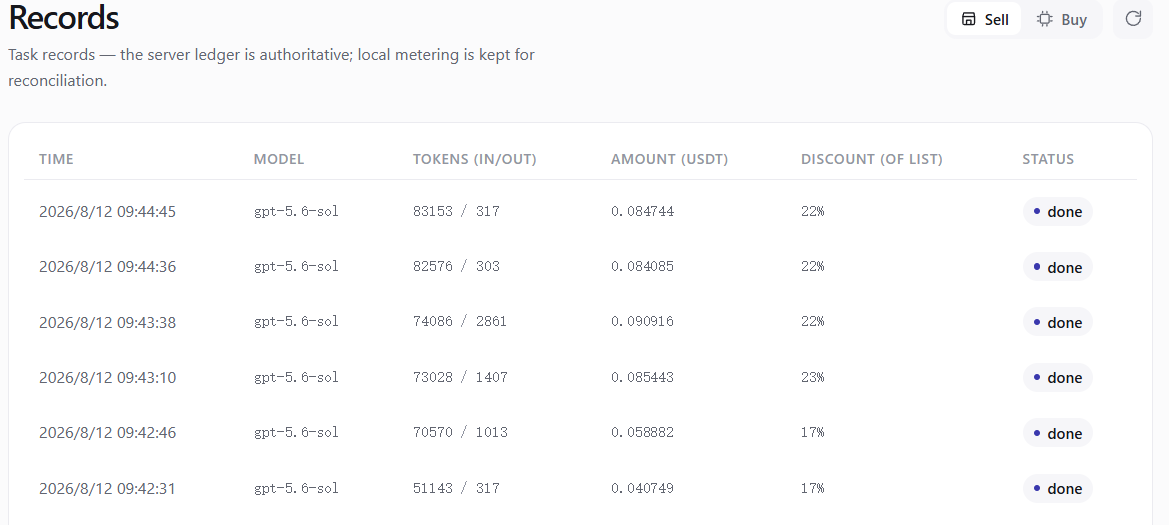
Records → Sell tab: every job listed with time, model, token count and earnings.
If Payable (earnings) in the Wallet is going up, everything is fine.
The market assigns work on four factors — price 45%, reputation 25%, response speed 15%, success rate 15% — and you need a reputation of at least 600 to be queued at all. A new account sitting at the back is perfectly normal.
Step 8: Withdraw
Wallet → Withdraw → pick Solana or TRON → enter an address and an amount; the page shows the fee and what actually arrives.
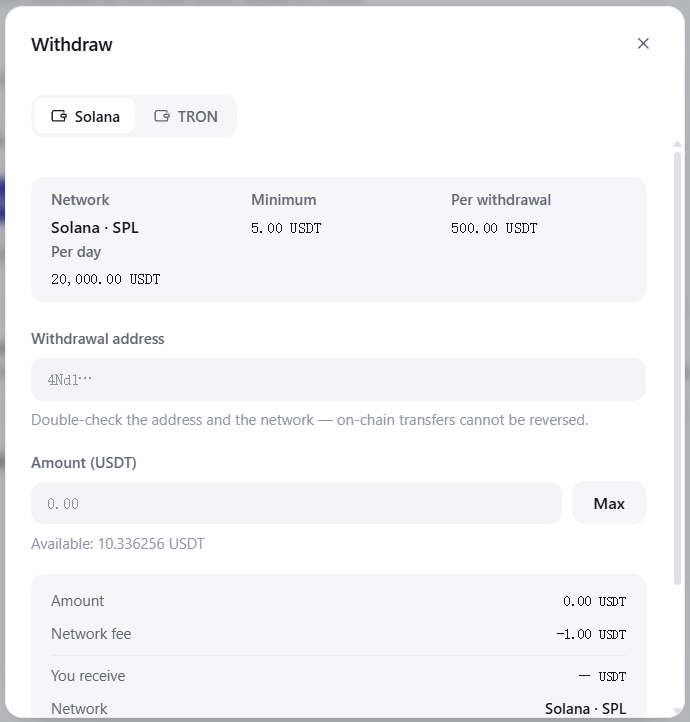
On-chain transfers cannot be reversed. Check the address and the network twice before you submit.
Common questions
I have several Google accounts and connected the wrong one — now what? Click Remove on the account card and connect again. Removing only drops the sign-in on Asale's side; it does not affect your Google account itself.
Does the Gemini CLI buy switch conflict with this? Yes. While Gemini CLI's Buy switch is on, the Gemini account imported from this machine is automatically taken out of the sale listing.
Will my own use of Gemini on the web be affected? You share one subscription's capacity, so the more you sell the less is left. That is exactly what the daily cap is for.
The card keeps saying "expired"? The sign-in on Google's side expired. Go back to the Sell page and connect once more.